Introduction to the new system
The new user system is split into two parts as opposed to the current version where one farmer and farm is one instance. In the new system, we see users and the farm as different instances.

The farm as an entity
The farm will now be an entity. The farm is where robots and other devices like Base Stations and Field Setup Tools are assigned. The farm is now the “center of the universe”. The farm owns all robots and other equipment. Users are granted permission to access the equipment owned by the farm based on their roles.
The users
People will now be users on the farm and can be assigned different roles on the farm depending on what their responsibilities are. It is now also possible to invite people outside your farm to see your robots. You can just add them with a Viewer account, then they can see all data but not change anything on your robots.
User types
The following user types are expected to be used on a farm:
Admin, Operator, Data manager and Viewer
Here below is a short description on the expected use of the different user types.
Admin
The farmer / owner or general manager of the farm. It could also be the person in charge of correspondence with the FarmDroid dealer on the farm. The admin is not necessarily the person operating the FarmDroid on a daily basis but can be an administrative person.
The admin has the right to assign new users to access the farm account and thereby the right to operate the FarmDroid. The ”Admin” has full rights to operate the robot like the “Operator”.
Operator
The Operator has almost the same rights as the Admin. The only difference is that the Operator cannot create and delete users on the farm account.
This is the user type intended for all hired hands on the farm. Holders of this account type have all abilities to operate, start and stop any FarmDroid on the farm from the app.
Viewer
The Viewer can see all data on the app but cannot start and stop the robot from the app, or make any other changes to the robot from the app.
This is not a very common data type for a farm, but it can be used for an advisor that needs to see how the FarmDroid is operating.
Data manager
This user type is basically a viewer. They cannot change any parameters on a robot or start or stop it. But they can set up any robot on the farm to the Agrirouter interface – Given the farm has the right service agreements to run the Agrirouter interface.
This user type is intended for advisors and others who have the need to extract data from the robots through the Agrirouter interface to their administrative system.
The transition from the old system to the new system
When we introduce the new system, we will create a new farm using the name of the user from the old account. At the same time, a User account with the same name as the old account will also be created, using the same email address and password as login credentials. This user will be assigned as Admin of the farm and have the full right to change and modify all parameters of the farm.
The app
The left navigation bar
Can be displayed compressed to the left below or in full as shown to the right

In the left navigation bar you will have the following options
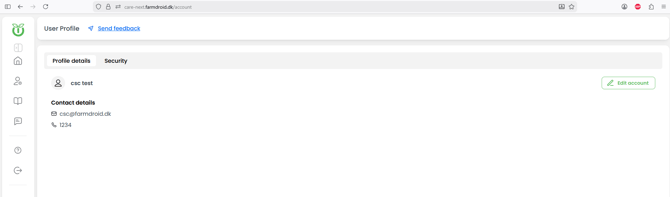
Click your name: In the wide menu you can click your name (The green text - In this example "CSC test") to enter the edit user menu.
Products: This is the tab where you see your robots.
Management: Only visible for admins. This is where you will manage your farm and the users assigned to the farm and their roles.
Guides: Will take you to the online Knowledge Base.
Support: Will display support details and some of the farm data.
About us: Will display miscellaneous data about FarmDroid and the app.
Sign out: Will log you out of the app.
User edit menu (Click your name in the extended left menu)
You will see this screen where there are two tabs "Profile details" and "Security". In “Profile details” you can see your user data, and by clicking "edit account" in the top-right corner, you can edit your data. The same goes for the ”Security” tab where you can change your password the same way.
Products menu – Working with your robots
Functionally, this menu is equivalent to the Products menu in previous versions of the app and will not be discussed in further detail here.
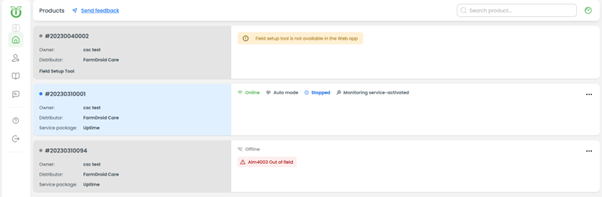
There is, however, a small change here compared to the older versions. If the robot has the right subscription levels, it is possible to toggle the view between Gauge View and Information View by pressing the Gauge View button:

Or the List View button in the top-right corner of the app.

Management menu – Managing users
This screen is only available for admin users. It is divided into three tabs:
However, the user type "Data Manager" has full access to the Agrirouter tab including changing all parameters in that tab.
Organization:
Here you can manage your farm details, such as farm name, email addresses, and general farm contact information. To edit these details, select “Edit organization” in the top-right corner.
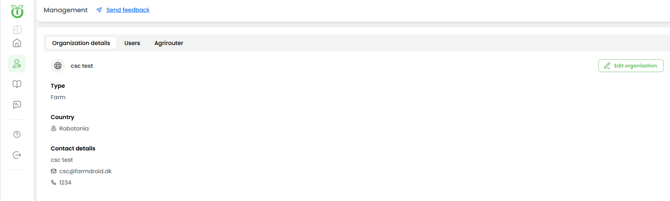
Then the edit menu appears where you can change the data about your farm: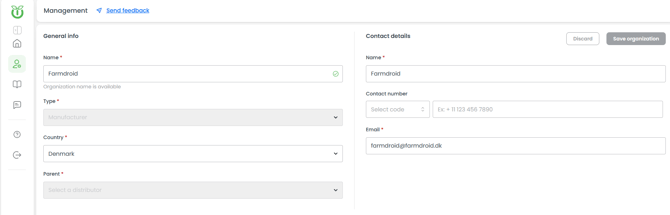
Users:
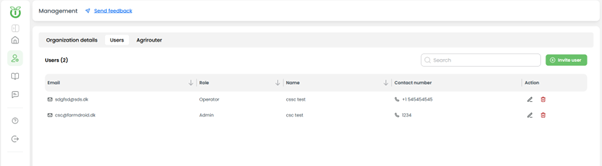
Here you can set up employees on the farm and assign their roles. Here it is recommended that employees are assigned the role of “Operator”.
Adding a new user is done by clicking the “invite user” in the top-right corner of the screen. Enter the employee’s email address and assign the intended role. When a user is invited, they will receive an email prompting them to either create a FarmDroid App account or, if they already have an account, accept the invitation to join your farm in the assigned role. Once the user has completed either step, they will see the farm’s robots when they log in to the FarmDroid App.
If you want to remove an existing user or change their roles you select either the “trash can” or the “pencil” in the “Action” column.
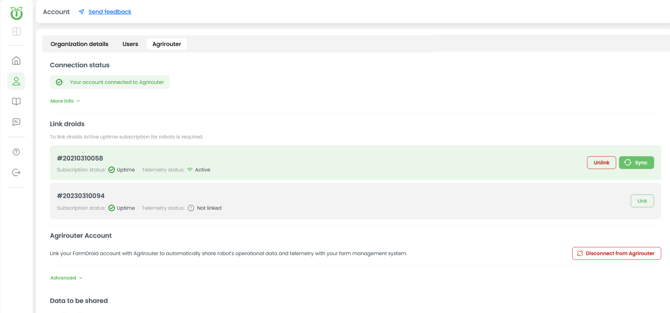
Agrirouter:
In the Agrirouter tab you administer all data transfer from the robots to Agrirouter.